Tool Approval
Overview
Inspect’s approval mode enables you to create fine-grained policies for approving tool calls made by models. For example, the following are all supported:
- All tool calls are approved by a human operator.
- Select tool calls are approved by a human operator (the rest being executed without approval).
- Custom approvers that decide to either approve, reject, or escalate to another approver.
Custom approvers are very flexible, and can implement a wide variety of decision schemes including informal heuristics and assessments by models. They could also support human approval with a custom user interface on a remote system (whereby approvals are sent and received via message queues).
Approvers can be specified at either the eval level or at the task level. The examples below will demonstrate eval-level approvers, see the Task Approvers section for details on task-level approvers.
Human Approver
The simplest approval policy is interactive human approval of all tool calls. You can enable this policy by using the --approval human CLI option (or the approval = "human") argument to eval():
inspect eval browser.py --approval humanThis example provides the model with the built-in web browser tool and asks it to navigate to a web and perform a search.
The human approver offers approve, reject and terminate by default (human_approver(choices=...) changes this). It cannot offer modify, since an operator has no way to enter a modified tool call: if choices includes "modify", it is dropped with a warning, and if "modify" is the only choice, human_approver() raises an error.
Auto Approver
Whenever you enable approval mode, all tool calls must be handled in some fashion (otherwise they are rejected). However, approving every tool call can be quite tedious, and not all tool calls are necessarily worthy of human oversight.
You can chain together the human and auto approvers in an approval policy to only approve selected tool calls. For example, here we create a policy that asks for human approval of only interactive web browser tool calls:
approvers:
  - name: human
    tools: ["web_browser_click", "web_browser_type"]

  - name: auto
    tools: "*"
Navigational web browser tool calls (e.g. web_browser_go) are approved automatically via the catch-all auto approver at the end of the chain. Note that when listing an approver in a policy you indicate which tools it should handle using a glob or list of globs. These globs are prefix matched so the web_browser_type glob matches both web_browser_type and web_browser_type_submit.
To use this policy, pass the path to the policy YAML file as the approver. For example:
inspect eval browser.py --approval approval.yamlYou can also match on tool arguments (for tools that dispatch many action types). For example, here is an approval policy for the Computer Tool which allows typing and mouse movement but requires approval for key combos (e.g. Enter or a shortcut) and typing:
approval.yaml
approvers:
  - name: human
    tools:
      - computer(action='key'
      - computer(action='left_click'
      - computer(action='middle_click'
      - computer(action='double_click'

  - name: auto
    tools: "*"
Note that since this is a prefix match and there could be other arguments, we don’t end the tool match pattern with a parentheses.
Approvers in Code
We’ve demonstrated configuring approvers via a YAML approval policy file—you can also provide a policy directly in code (useful if it needs to be more dynamic). Here’s a pure Python version of the example from the previous section:
from inspect_ai import eval
from inspect_ai.approval import ApprovalPolicy, human_approver, auto_approver

approval = [
    ApprovalPolicy(human_approver(), ["web_browser_click", "web_browser_type*"]),
    ApprovalPolicy(auto_approver(), "*")
]

eval("browser.py", approval=approval, trace=True)
Task Approvers
You can specify approval policies at the task level using the approval parameter when creating a Task. For example:
from inspect_ai import Task, task
from inspect_ai.scorer import match
from inspect_ai.solver import generate, use_tools
from inspect_ai.tool import bash, python
from inspect_ai.approval import human_approver

@task
def linux_task():
    return Task(
        dataset=read_dataset(),
        solver=[
            use_tools([bash(), python()]),
            generate(),
        ],
        scorer=match(),
        sandbox=("docker", "compose.yaml"),
        approval=human_approver()
    )
Note that as with all of the other Task options, an approval policy defined at the eval-level will override a task-level approval policy.
Context Manager
You can temporarily override approval policies within a running evaluation using the approval() context manager. This is useful when a solver or agent needs different approval policies for a specific section of tool calls:
from inspect_ai.approval import approval, ApprovalPolicy, human_approver, auto_approver

async def my_solver(state):
    # Use human approval for a critical section
    with approval([ApprovalPolicy(human_approver(), "*")]):
        # tool calls within this block require human approval
        ...

    # Outside the block, previous approval policies are restored
    ...
The context manager replaces the current approval policies for its duration and restores the previous ones on exit. Nesting is supported—each nested approval() context sets its own policies and correctly restores the outer policies when it exits.
The execute_tools() function and the react() agent also accept an approval parameter for convenience, which applies approval policies for the duration of tool execution:
from inspect_ai.model import execute_tools
from inspect_ai.approval import ApprovalPolicy, human_approver

result = await execute_tools(
    messages, tools,
    approval=[ApprovalPolicy(human_approver(), "*")]
)
from inspect_ai.agent import react
from inspect_ai.approval import ApprovalPolicy, human_approver
agent = react(
tools=[bash(), python()],
approval=[ApprovalPolicy(human_approver(), "*")]
)Bridged Agents
Agents integrated via the Agent Bridge run their own tool loop, so Inspect never executes their tool calls. Approval policies are applied instead to the tool calls in each model response, before that response is handed back to the agent. This covers both agent_bridge() and sandbox_agent_bridge(), and every API dialect they support.
Eval-level and task-level policies apply automatically. You can also scope policies to a bridge directly:
async with sandbox_agent_bridge(
    state,
    approval=[
        ApprovalPolicy(human_approver(), "bash"),
        ApprovalPolicy(auto_approver(), "*"),
    ],
) as bridge:
    ...
For a sandbox bridge this parameter is the only reliable way to set policy from inside the agent: bridged generations run in the sandbox service task, which doesn’t see an approval() context manager entered within the agent body.
Decisions behave as follows:
| Decision | Behavior for a bridged agent |
|---|---|
| approve | The call is passed to the agent, which executes it as normal. |
| modify | The modified arguments are passed to the agent. A modified call to a different function fails the sample with an error. A modify with no modified call is treated as a rejection. |
| reject | The call is never given to the agent. The model is told it was rejected and asked to generate again; the agent sees only the replacement response. |
| terminate | The sample is terminated. |
| escalate | Passed to the next approver in the chain, as elsewhere. |
Two behaviors are specific to bridged agents:
A rejection discards every tool call in the same response. Each call gets a result explaining what happened, and the calls that weren’t themselves rejected are told which call caused it so the model can re-issue them on their own. This differs from Inspect-executed tools, where each call is handled independently.
Three consecutive rejected responses terminate the sample. Without this a model that keeps proposing rejected calls would retry indefinitely.
Because Inspect doesn’t execute these tool calls, no tool event is recorded for them — the transcript shows the approval decision rather than a tool call with an approval attached. Two things follow from that when reading a log:
Calls are approved in order and evaluation stops at the first rejection, so a call approved just before a rejected sibling has an approval recorded even though it never ran. An approval decision for a bridged agent records that the call was permitted, not that it was executed.
Automatic approvals by the
autoapprover are not shown at all. If you want a visible record of every decision, use an approver other thanauto.
A modify decision leaves the original call intact in the log: the recorded model output and approval event show what the model proposed, and the approval event’s modified field shows what was substituted.
For a sandbox bridge with bridged tools, the decision also determines what the agent can execute on the host. A bridged tool runs only for a call the model proposed in a bridged generation, once per proposal, with the arguments as approved (so a modify decision grants the modified call, not the original); a tools/call with no matching proposal is denied and the agent surfaces the error to the model, which re-proposes. This holds with no approval policy configured as well. A server registered with BridgedToolsSpec(require_proposal=False) gives up this correspondence: its tools run for any tools/call the agent sends. See Execution Contract. Under Codex CLI’s code mode the model proposes only the exec call that runs its script, so policies review that call and the host tool calls the script makes are reviewed by no policy (and need require_proposal=False to run at all).
Remote MCP Servers
A remote MCP server (execution="remote") has its tools called by the model provider during generation, so Inspect can’t approve those calls. While an approval policy is active, generating with a remote MCP server raises an error instead of sending the server to the provider. This applies to any policy, including one that names other tools, since a tool call no policy matches is rejected. It also applies to policies passed to react(), agent_bridge() and sandbox_agent_bridge(). Use execution="local" to have the server’s tool calls approved like any other.
Custom Approvers
Inspect includes two built-in approvers: human for interactive approval at the terminal and auto for automatically approving or rejecting specific tools. You can also create your own approvers that implement just about any scheme you can imagine.
Custom approvers are functions that return an Approval, which consists of a decision and an explanation. Here is the source code for the auto approver, which just reflects back the decision that it is initialised with:
@approver(name="auto")
def auto_approver(decision: ApprovalDecision = "approve") -> Approver:

    async def approve(
        message: str,
        call: ToolCall,
        view: ToolCallView,
        history: list[ChatMessage],
    ) -> Approval:
        return Approval(decision=decision, explanation="Automatic decision.")

    return approve
There are five possible approval decisions:
| Decision | Description |
|---|---|
| approve | The tool call is approved |
| modify | The tool call is approved with modification (the modified call goes in the modified field of Approval) |
| reject | The tool call is rejected (report to the model that the call was rejected along with an explanation) |
| escalate | The tool call should be escalated to the next approver in the chain. |
| terminate | The current sample should be terminated as a result of the tool call. |
A modify decision must carry the modified call in modified. Without one, the decision is treated as a rejection: the tool does not run, and the model is told that a modification was chosen but no modified call was supplied. The approval event still records the modify decision.
A modify decision may change only the arguments of the tool call. If the modified call names a different function, neither tool runs and the sample fails with an error, since this is a bug in the approver rather than something to report to the model. For a modified call, the tool event records the arguments that ran, while the model output and the approval event keep the call the model proposed.
Here’s a more complicated custom approver that implements an allow list for bash commands. Imagine that we’ve implemented this approver within a Python package named evaltools:
@approver
def bash_allowlist(
    allowed_commands: list[str],
    allow_sudo: bool = False,
    command_specific_rules: dict[str, list[str]] | None = None,
) -> Approver:
    """Create an approver that checks if a bash command is in an allowed list."""

    async def approve(
        message: str,
        call: ToolCall,
        view: ToolCallView,
        history: list[ChatMessage],
    ) -> Approval:

        # Make approval decision

        ...

    return approve
Assuming we have properly registered our approver as an Inspect extension, we can then use this it in an approval policy:
approvers:
  - name: evaltools/bash_allowlist
    tools: "bash"
    allowed_commands: ["ls", "echo", "cat"]

  - name: human
    tools: "*"
These approvers will make one of the following approval decisions for each tool call they are configured to handle:
- Allow the tool call (based on the various configured options)
- Disallow the tool call (because it is considered dangerous under all conditions)
- Escalate the tool call to the human approver.
Note that the human approver is last and is bound to all tools, so escalations from the bash and python allow list approvers will end up prompting the human approver.
See the documentation on Approver Extensions for additional details on publishing approvers within Python packages.
Tool Views
By default, when a tool call is presented for human approval the tool function and its arguments are printed. For some tool calls this is adequate, but some tools can benefit from enhanced presentation. For example:
The interactive features of the web browser tool (clicking, typing, submitting forms, etc.) reference an
element_id, however this ID isn’t enough context to approve or reject the call. To compensate, the web browser tool provides some additional context (a snippet of the page around theelement_idbeing interacted with).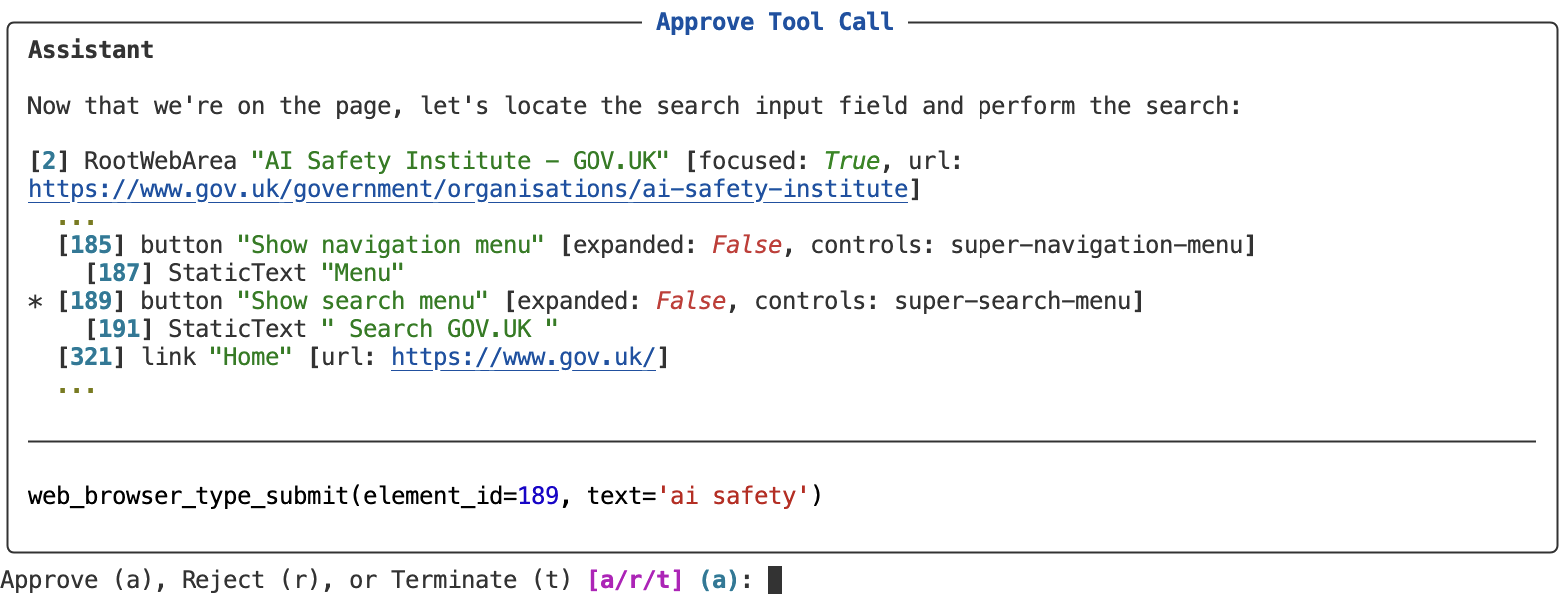
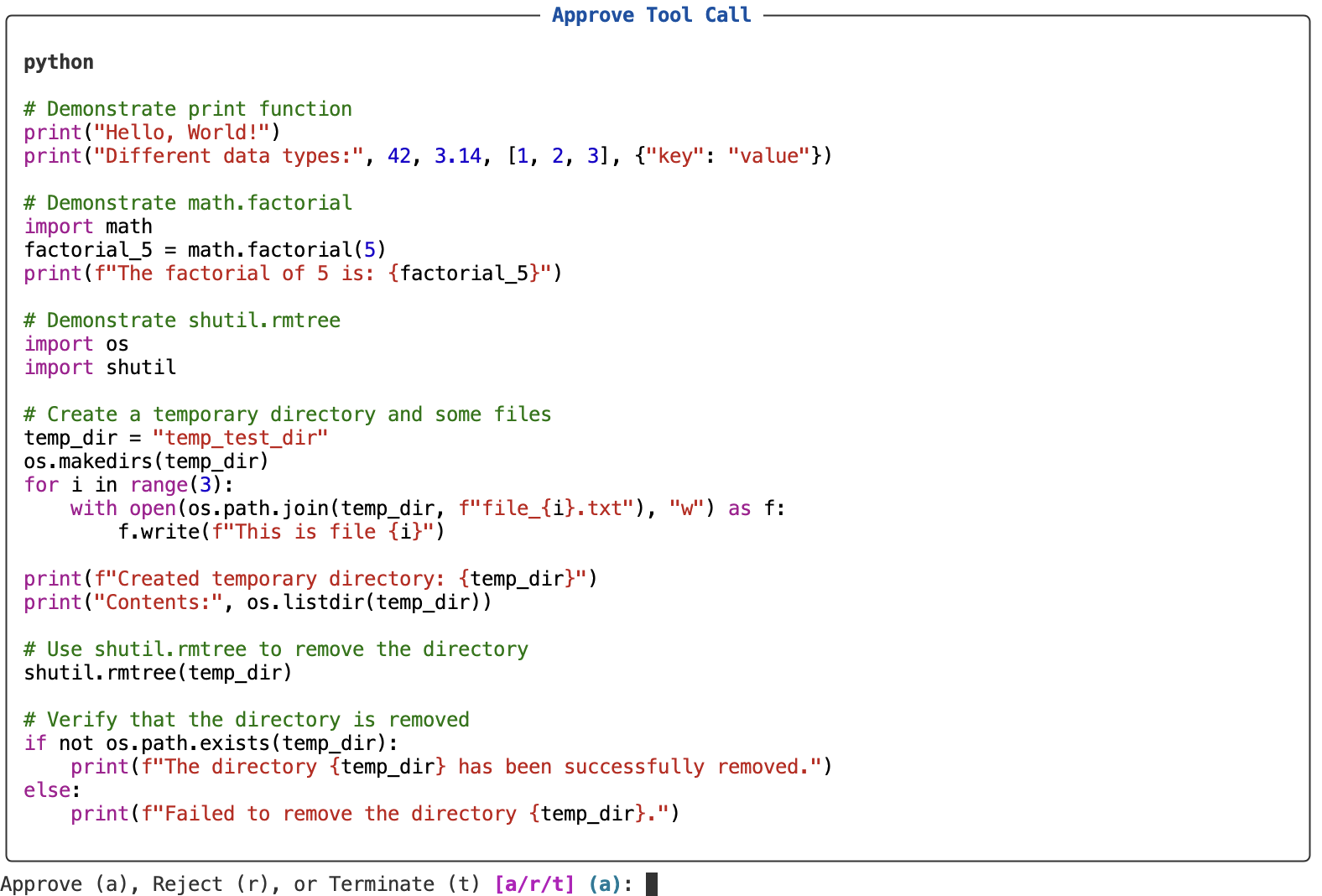
The bash() and python() tools take their input as a string, which especially for multi-line commands can be difficult to read and understand. To compensate, these tools provide an alternative view of the call that formats the code and as multi-line syntax highlighted code block.
Example
Here’s how you might implement a custom code block viewer for a bash tool:
from inspect_ai.tool import (
    Tool, ToolCall, ToolCallContent, ToolCallView, ToolCallViewer, tool
)

# custom viewer for bash code blocks
def bash_viewer() -> ToolCallViewer:
    def viewer(tool_call: ToolCall) -> ToolCallView:
        code = tool_call.arguments.get("cmd", tool_call.function).strip()
        call = ToolCallContent(
            format="markdown",
            content="**bash**\n\n```bash\n" + code + "\n```\n",
        )
        return ToolCallView(call=call)

    return viewer


@tool(viewer=bash_viewer())
def bash(timeout: int | None = None) -> Tool:
    """Bash shell command execution tool.
    ...
The ToolCallViewer gets passed the ToolCall and returns a ToolCallView that provides one or both of context (additional information for understand the call) and call (alternate rendering of the call). In the case of the bash tool we provide a markdown code block rendering of the bash code to be executed.
The context is typically used for stateful tools that need to present some context from the current state. For example, the web browsing tool provides a snippet from the currently loaded page.